Skip to content

Send to device, in the web dashboard and the Tapp app

Start the payment anywhere. Take it where the guest is.

Send an order from the web dashboard or the Tapp app to another phone or iPad in your restaurant. The payment opens there, and the device that sent it sees the order arrive, open and get paid.

Send to device at Bistro Nord: order #184 is sent from the web dashboard to the counter iPad, passed on to the floor phone and paid there with Tap to Pay, and “Payment received” returns to the iPad.

Send to device

Ring it up on one device, take the payment on another.

Both ends of the hand-off

The order travels, not the guest

Ring the order up where it is quickest, then take the payment on the device that is closest to the guest.

Order #184

£45.50

Payment on device · Pick on device

Select device

Send it and start the next sale

Choose a device under “Select device” and tap “Send to device”. The till is free for the next order and hears back as the payment is opened and received.
The payment opens on the other device

The phone or iPad gets a “Payment request”. One tap opens the order’s payment, and if the app is already open, the payment opens by itself.

During service

Made for a full room

Send from any screen to the phones and iPads your team carries, with the right payment waiting when the order lands.

  • Set Tap to Pay, QR code, cash, a payment link or SMS before you send, or leave it to the device with “Pick on device”. A phone in terminal mode takes Tap to Pay and QR code only.

  • In the app, “Send to another device” sits under the payment methods. Tap a device in “Choose device” and the order goes at once; that device picks the method.

  • If a phone in terminal mode is still showing another order to a guest, Tapp asks before sending. “Cancel & send” stops that payment and sends the new order.

  • Orders sent to a device stay in its “Payments on this device” list until they are completed, so a notification swiped away loses nothing.

Payment on device

Select device

Setting it up

Ready when your team logs in

There is nothing to pair. Every phone and iPad joins your shop’s devices as soon as someone logs in to the Tapp app.

Log in on each device

Phones and iPads appear under Devices in the web dashboard. Owners and managers choose which of them are POS devices.

Store devices

POS devices · 2 active · 3 total

  • Counter iPadiOS
  • Floor phoneAndroid
  • Alex Morgan's deviceiOS

Give it a name

A new device is named after the person who logged in. Rename it in the app’s settings so the team knows which one is which.

Device name

Maya Clarke's device

Turn a phone into the guest’s screen

In terminal mode a phone shows only the payment screen, for Tap to Pay or a QR code. Staff leave terminal mode with a terminal PIN.

Amount due£17.25

Hold or tap your card near the device

Paid where it landed

The device that takes the payment completes the order, and the sender sees “Payment received”.

Payment complete

Paid
Order 194
£64.00
Paid with
Tap to Pay

Part of the payment flow

A sent order is still a normal Tapp order

It is paid with the same methods and lands in the same order history and reports.

  • Two guests at a restaurant table order while a waiter builds their order by voice on a phone running the Tapp POS

    Point of sale

    Ring the order up in the web dashboard or the app; sending it to a device is one more way to take payment.

    Explore Point of sale
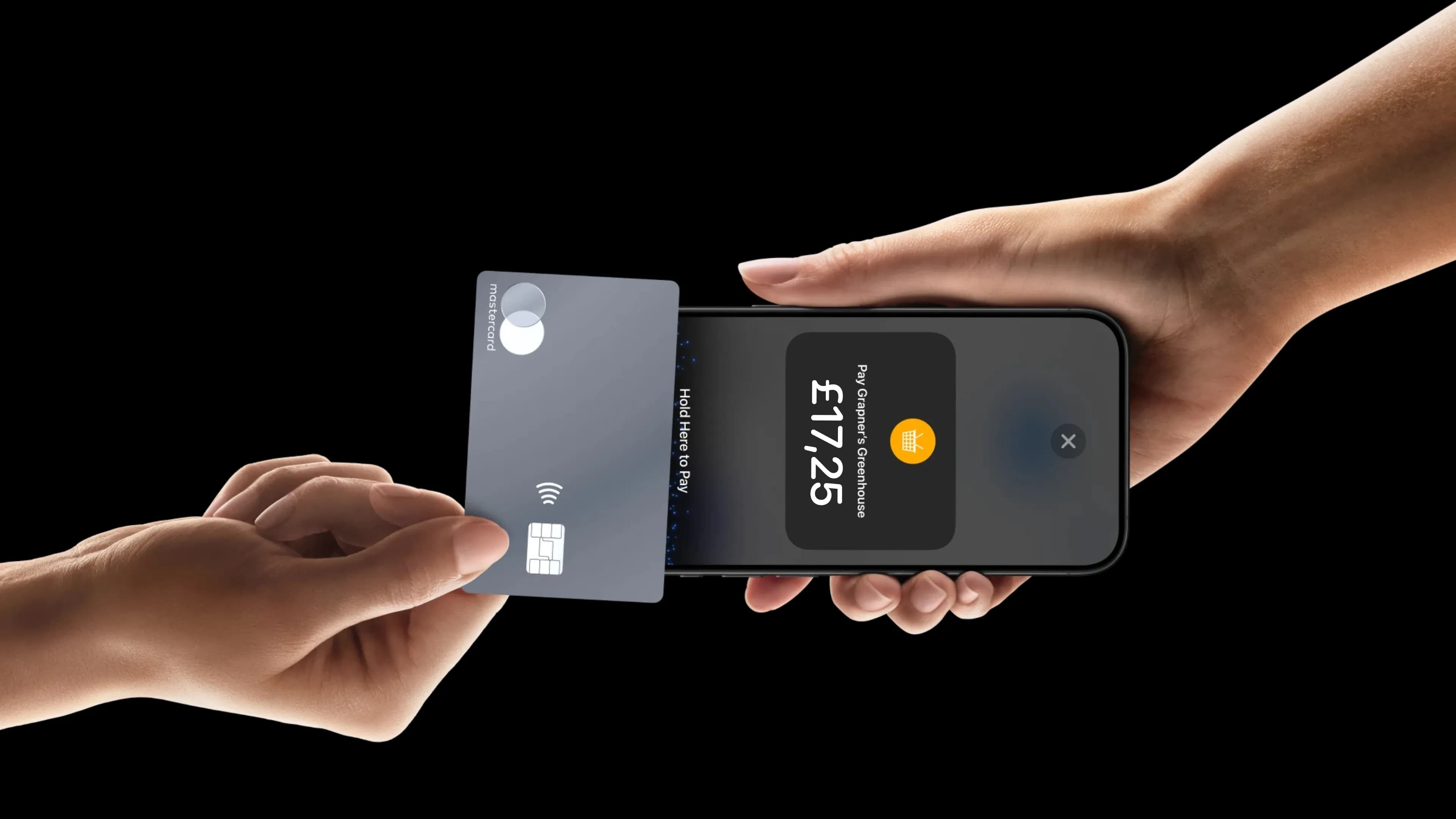
  • A guest tapping a contactless card on a phone running Tapp

    Tap to Pay

    The phone that receives the order takes contactless cards, Apple Pay and Google Pay itself.

    Explore Tap to Pay
  • A cook in a cap stirring a pot at the stove of a dark restaurant kitchen, under a warm pendant lamp

    Staff

    Every team member’s phone can be a POS device. Invite the team and give each person their role.

    Explore Staff

Questions about sending to a device

AI answers from our Help Center. Please don’t include personal or payment details.

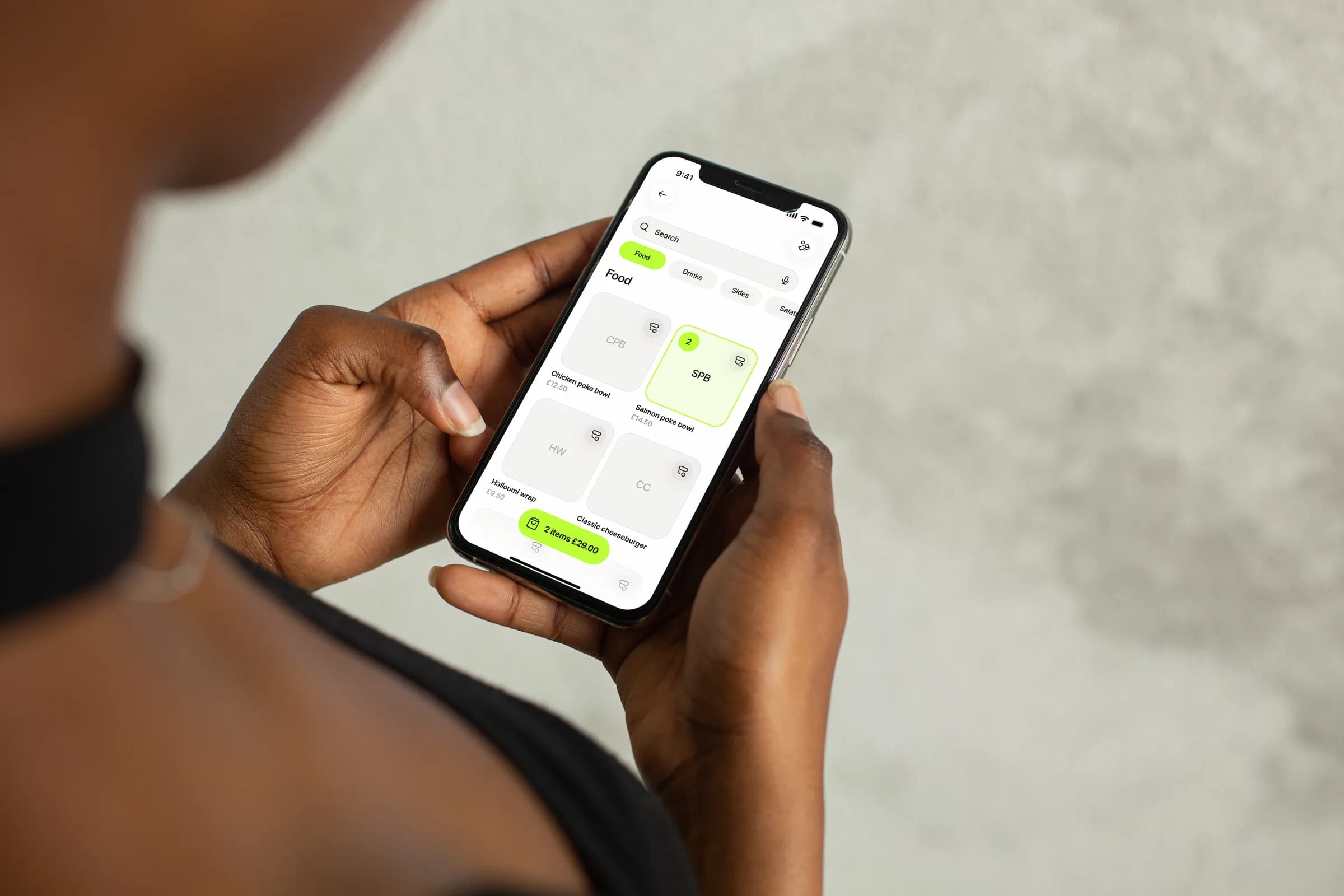
Two hands hold an iPhone showing Tapp’s Sell screen: menu tiles, with two salmon poke bowls in the basket

Let the payment meet the guest

Get started, log in on your team’s phones and send your first order to another device.